What you design in your email builder isn’t always what your subscribers see.
In July 2026, Apple accounted for 62% of email opens, Gmail for 27%, and Outlook desktop for about 6%, according to Litmus. That mix means your design has to handle different rendering rules, screen sizes, and display settings.
That’s why email newsletter design best practices go beyond looks. A good newsletter should stay clear, readable, and on-brand whether someone opens it on a laptop or a phone.
These eight best practices will help you design newsletters that stay clear, usable, and on-brand across the different ways people read email.
1. Design for both light mode and dark mode
The old assumption is that dark mode is the black version of your newsletter. But there’s so much more nuance to that. Different email clients can alter backgrounds, text colors, buttons, logos, icons, and illustrations in different ways, which makes dark mode email design hard to patch at the end.
Treat it as a design problem first.
Before development, test key assets against light, dark, and mid-gray backgrounds. If a logo disappears in Figma on a dark canvas, you’ve already got a design issue. The same goes for icons, illustrations, and buttons.
A transparent black logo may look perfect on white and disappear once the background changes. Depending on the brand, you can:
- Place the logo inside a stable background container
- Add a subtle outline or stroke
- Prepare a dark-mode version where supported
- Use icon colors that keep their contrast in both modes
Buttons should also stay recognizable if the fill color shifts. A visible border can help preserve their shape and hierarchy.
Design Force tip: Test dark mode while you’re still making design decisions, long before final QA.
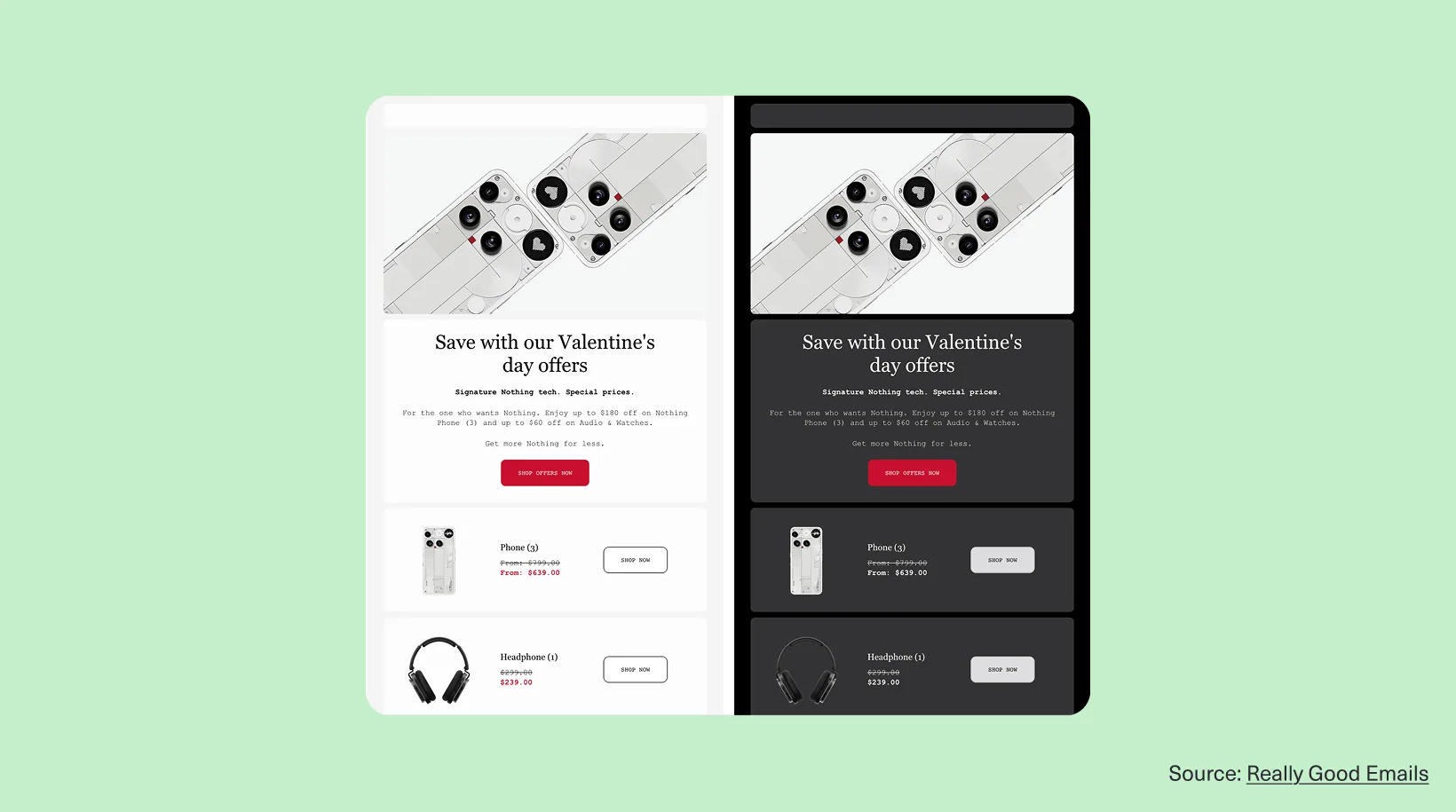
Source: Really Good Emails
This email from London-based consumer electronics manufacturer Nothing handles dark mode well because the logo, buttons, and product images still work when the background changes.
Don’t solve dark mode by turning the whole email into one image. That can make the email slower to load and harder to access.
2. Build a clear visual hierarchy
Most people don’t read emails word for word. They’re scanning to quickly answer one question: “What’s in this for me?” Then they look for the key details and the next step.
Your newsletter layout should make that order obvious:
Main message → Supporting information → Primary action
Use size, spacing, color, and typography to guide the eye, with the headline taking priority and the supporting copy sitting clearly beneath it.
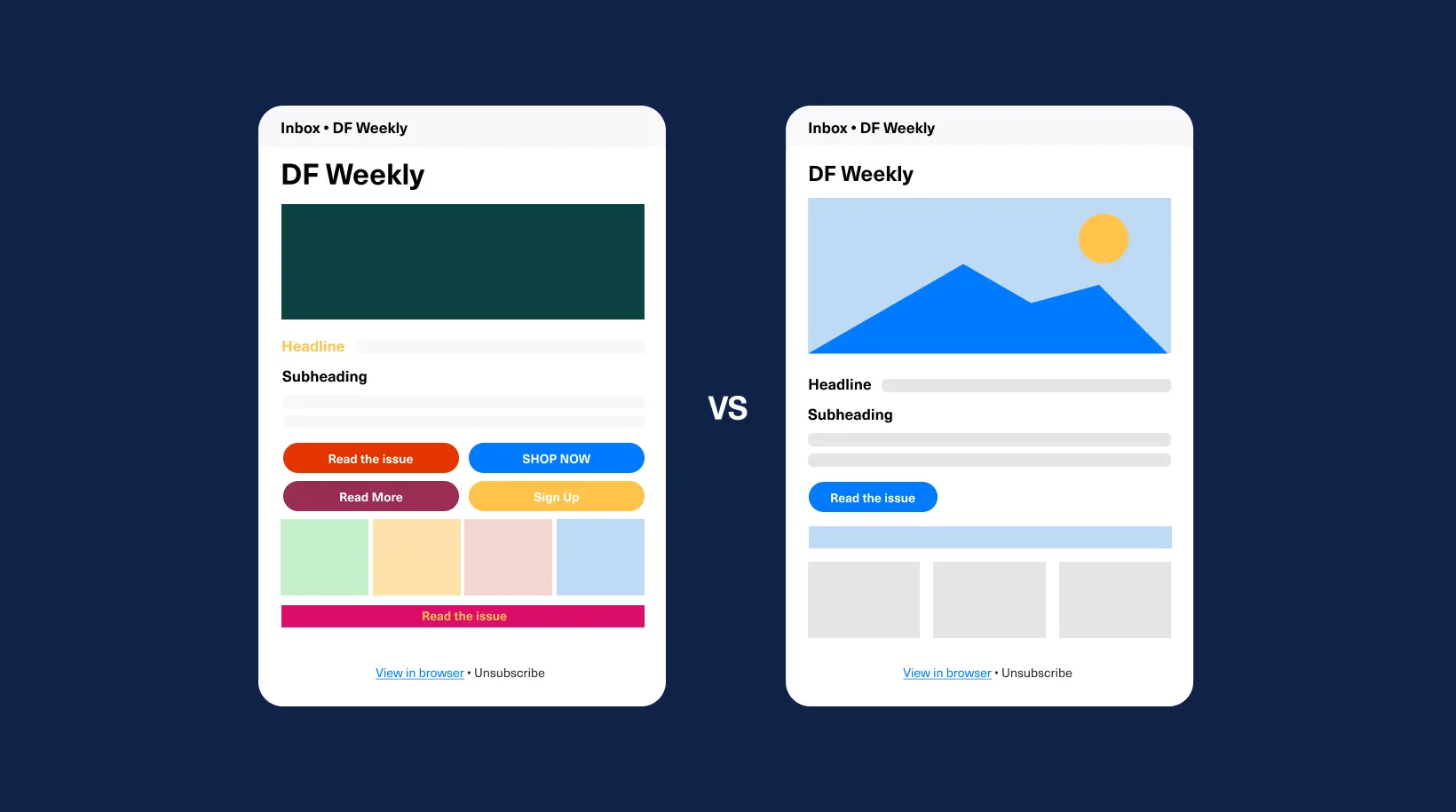
If there is more than one CTA, make the main one clearly stronger than the others. Readers should not have to work out which action matters most.
The same idea applies beyond email. Design Force’s guide to visual hierarchy explains how size, contrast, alignment, and repetition help guide attention through a layout.
Design Force tip: Try the three-second test. Glance at the email, then look away. If you can remember the main message and what to do next, the hierarchy is working.
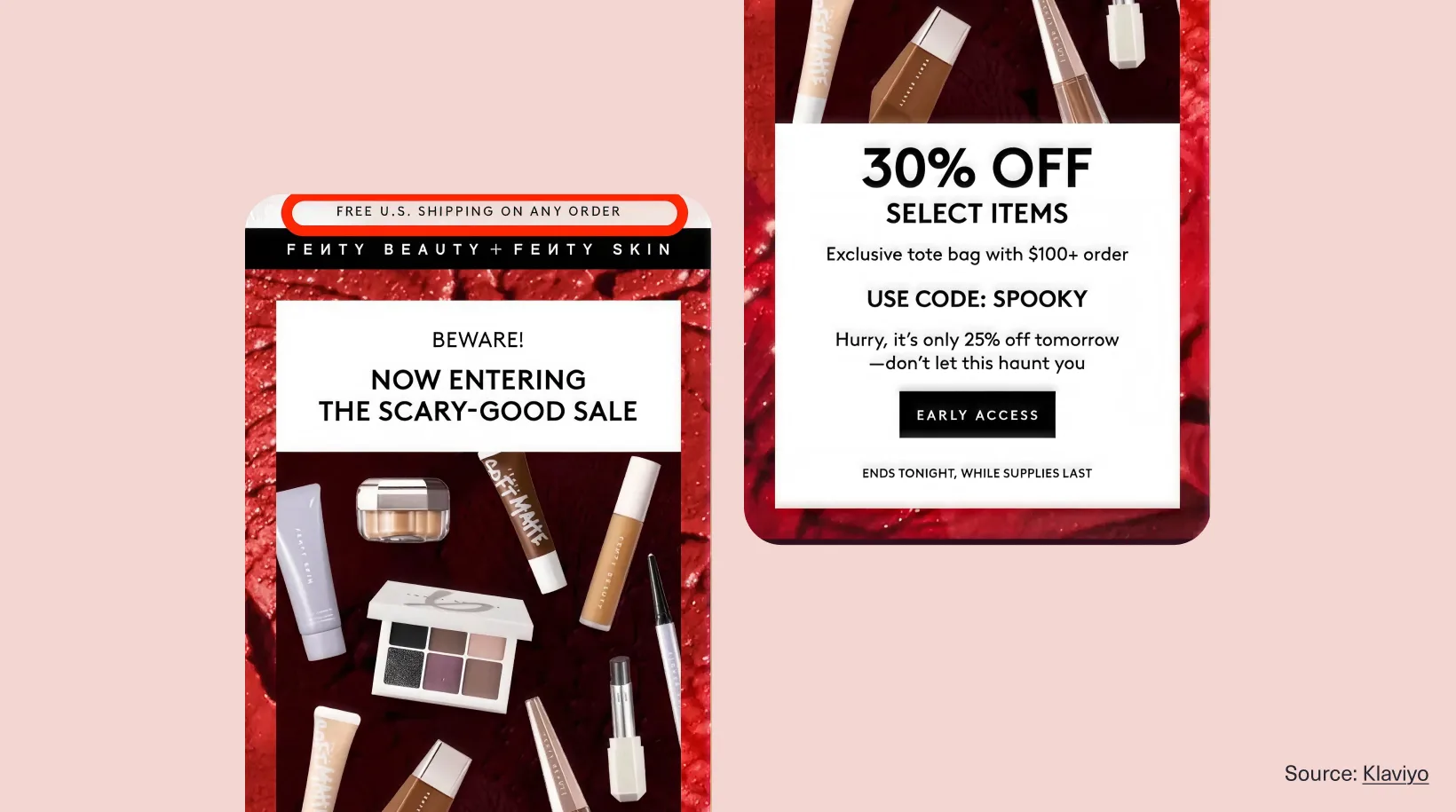
Source: Klaviyo
Makeup brand Fenty makes the offer easy to understand right away. The “30% OFF” headline immediately grabs attention first, followed by the offer details and the “Early Access” CTA.
The product images keep the email visually engaging, but they don’t steal attention from the offer. The color palette also helps keep the message easy to follow, while the smaller urgency copy stays secondary to the main CTA.
3. Understand how email subscribers render HTML differently
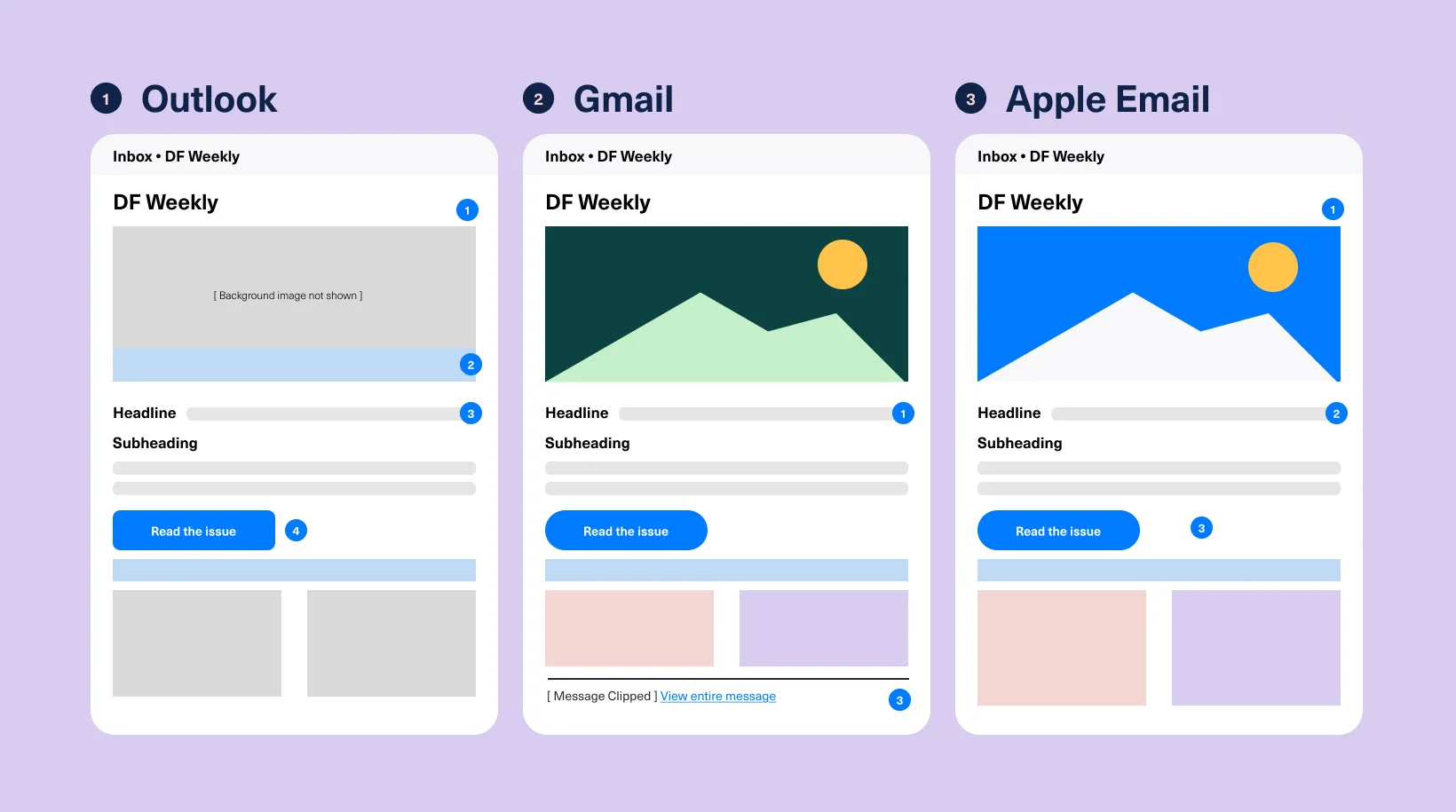
Email doesn’t behave like a web page.
HTML email design has to work inside inboxes that use different rendering engines and support different amounts of CSS. An email can look great in one inbox and slightly different in another.
Outlook
Outlook is often the toughest environment for HTML email design, especially in classic desktop versions. Some versions render email with Microsoft Word’s engine, so modern CSS can behave in ways a browser never would. Spacing, margins, background treatments, and complex layouts are the usual trouble spots.
Keep core structures simple and use spacing methods you can rely on. Your key message and CTA shouldn’t depend on decorative CSS behaving perfectly.
Design Force tip: Always include Outlook in your pre-send QA. Pay close attention to spacing, button alignment, multi-column sections, and background treatments.
Gmail
Gmail supports inline blocks, standard CSS, common selectors, and responsive media queries. Google also maintains a defined list of supported CSS, and it may ignore anything outside it.
That affects responsive behavior, dark-mode workarounds, and decorative styling. Build the email so it still makes sense if a nonessential style drops out.
Design Force tip: Treat advanced styling in Gmail as a bonus. The headline, offer, imagery, and CTA should still work if a styling rule is ignored.
Apple Mail
Apple Mail handles modern styling better than most, so your design will often look its best there. That’s exactly why it can mislead you. If Apple Mail is the only place you preview, you may feel more confident than you should.
Dark mode, different Apple devices, and the same email opened later in Gmail or Outlook can all look different. Use Apple Mail as one test case, and don’t let it set the standard for every recipient.
Design Force tip: If an email looks perfect in Apple Mail, test it somewhere less forgiving before you sign off. A strong design should degrade gracefully across clients.
Email client compatibility means making sure the email still works wherever it’s opened. Spacing and colors may change a little, but the message, branding, and CTA should stay clear.
4. Design for mobile screens first
With 91% of U.S. adults owning a smartphone, mobile is no longer a secondary viewing environment. For many subscribers, it is the screen they have with them throughout the day.
For a lot of your subscribers, that’s the screen they check first and most often.
Responsive email design takes more than shrinking a desktop template. Start with a narrow screen and build outward. A single column is usually the easiest to scan, though multi-column sections can still work if you plan how they’ll stack.
Nobody should have to scroll past a giant decorative hero to find out why you emailed them. Mobile layouts should be simple, with the content in a clear order and the main action easy to find.
Put the main message and primary CTA near the top. Keep text comfortable to read, and give buttons and links enough room that a thumb won’t hit the wrong one. Avoid clusters of small links, and use descriptive link copy like “View the collection” instead of “Click here.”
Watch your file sizes as well. Oversized images and heavy animations slow things down on mobile, so compress your assets and make sure the message still works while images are loading.
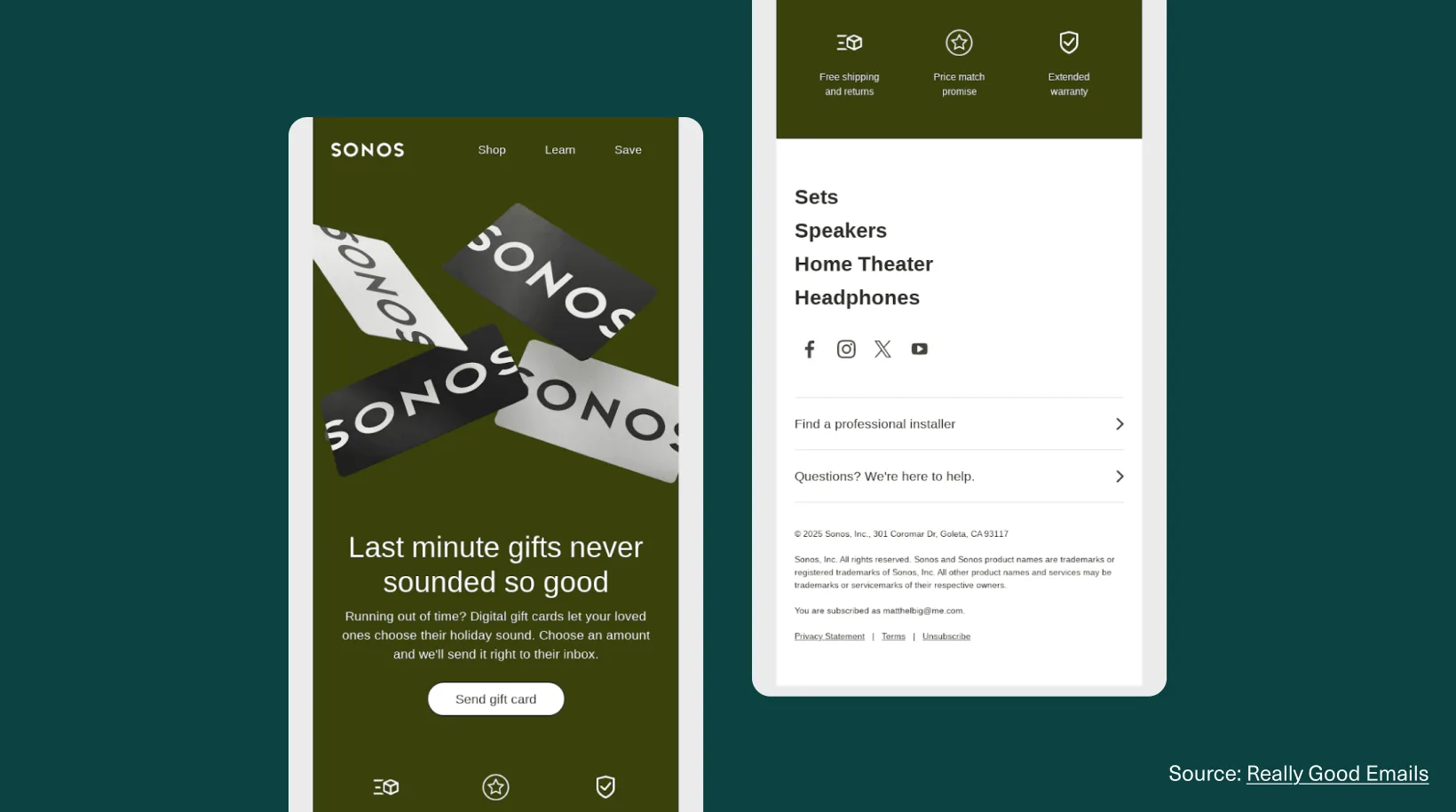
This email from audio technology brand Sonos works on mobile because it gives the reader one path to follow. A product image leads into a short headline, a quick explanation, and one obvious CTA button.
The single-column layout makes the email easy to scan on a small screen. The text is comfortable to read, the button is easy to tap, and the supporting benefits follow naturally after the main message.
Design Force tip: Design the narrow-screen version first. Once the message and CTA work on mobile, the desktop version is much easier to build around them.
5. Make accessibility part of the layout
Accessibility helps more people read, understand, and act on your email. It also reduces friction for people using different devices or assistive technology.
The same principles behind inclusive web design apply here too: clear structure, readable content, and fewer barriers.
Accessibility is far easier to build in early than to retrofit before a send.
Keep essential copy as live HTML text instead of baking it into graphics. Screen readers can read live text more easily. It also scales when people zoom in and adapts better across different devices and display settings.
Check your contrast next. Text and buttons should stand out clearly from their backgrounds, and color shouldn’t be the only way you signal meaning. Pair it with text, shapes, or labels so the message still lands for someone who can’t see the color difference.
For readability, keep body copy comfortably sized, left-align longer text, and leave space between paragraphs. Links should say where they go, and buttons should be big enough to tap easily on mobile.
When it comes to alt text, if an image carries meaning, describe it briefly. If it contains important text, repeat that text in the body or the alt text, so a blocked image doesn’t take your message with it.
Design Force tip: Turn images off during QA. If the message, hierarchy, or CTA falls apart without them, the email is leaning too hard on graphics.
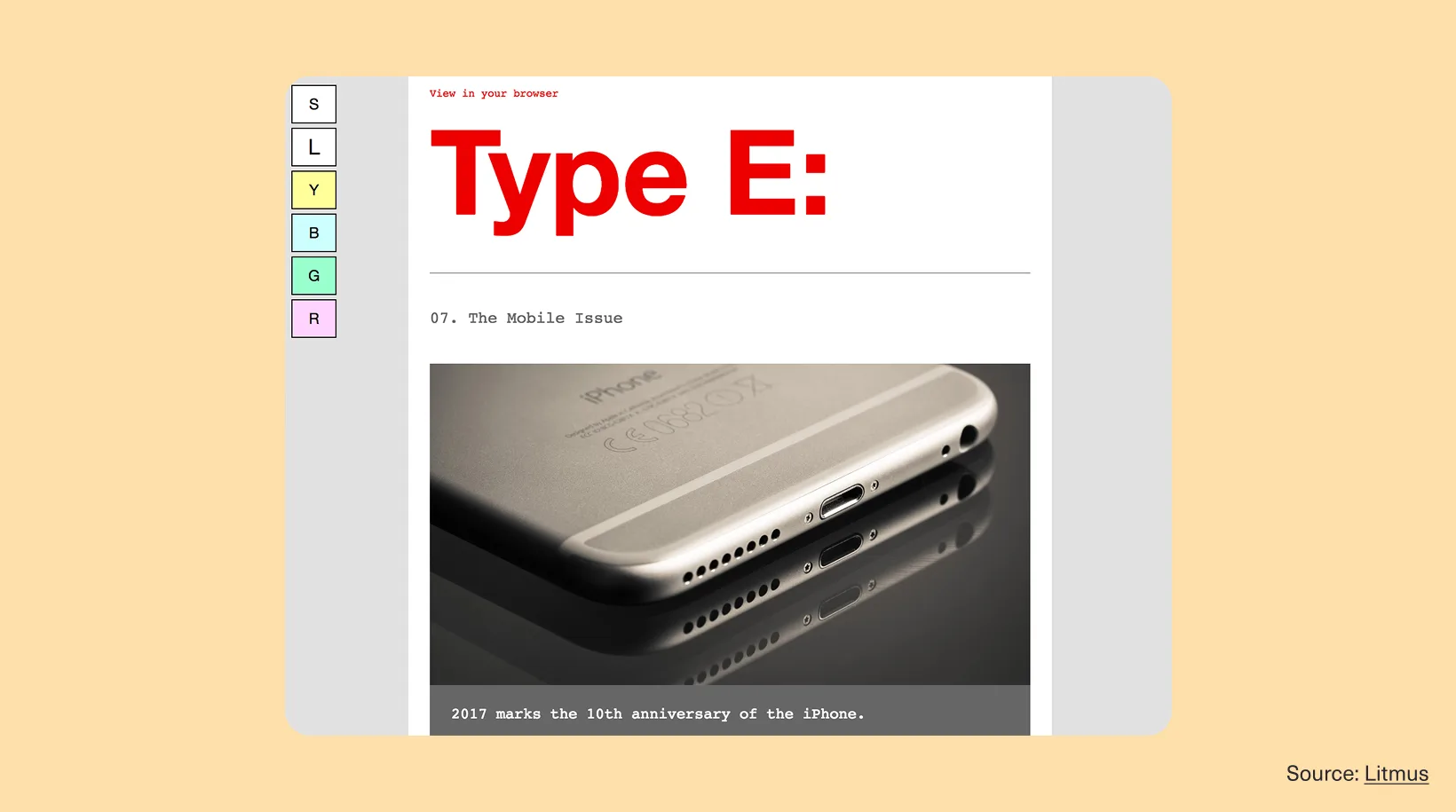
Source: Litmus
Type E: newsletters from email designer and developer Paul Airy allow readers to adjust how the email looks. Subscribers can switch to a larger text size, and some can choose a tinted background that’s easier on the eyes. The default layout is easy to read, with a clear headline, simple sections, and generous spacing around the content.
6. Test every newsletter before you send
The preview in your email builder shows you one environment. It can’t tell you how the email behaves anywhere else, and none of the email newsletter design best practices above count for much if you skip this step.
Your email design testing checklist should cover:
- Desktop and mobile
- Light mode and dark mode
- Gmail, Outlook, and Apple Mail
- Logo and icon visibility
- Image loading and alt text
- Button contrast and tap targets
- Links and destinations
- Font sizing
- Layout stacking
- Spacing and alignment
Design Force tip: Use the same pre-send checklist for every campaign. Test the main email clients, devices, display modes, and key interactions each time. That makes QA part of the process instead of something rushed at the end.
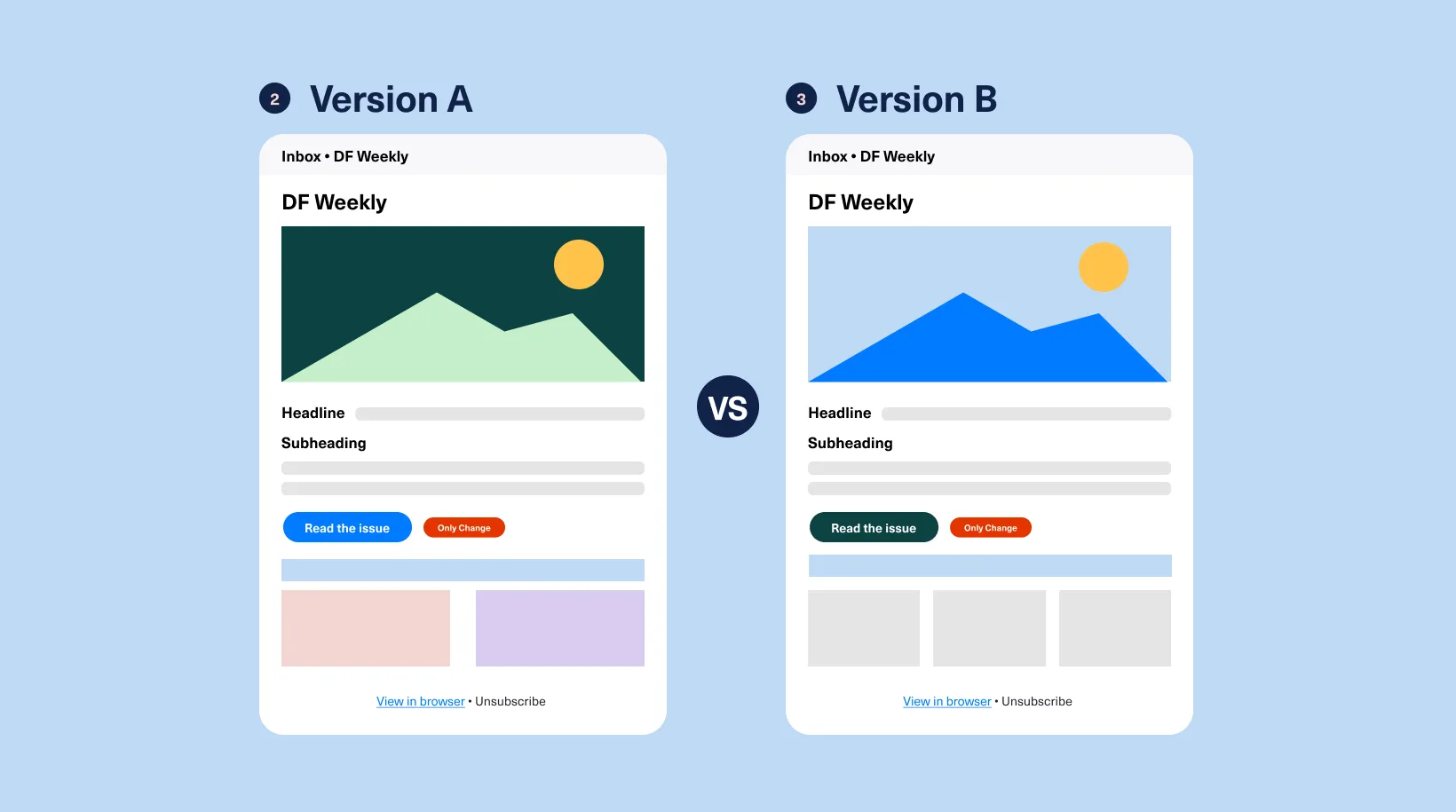
Keep testing after the campaign goes out, too.
If a redesigned template wins once, give it a few more sends before you call it the new standard. People often click on a layout simply because it’s new, and that tends to fade.
Run controlled A/B tests over time, and change one variable at a time (fonts, product blocks, colors, CTAs, or layouts). That way you’ll know what actually moved the result.
7. Avoid common newsletter design mistakes
Even experienced teams can send broken emails.
Some problems are technical: transparent logos disappear, text loses contrast, sections stack incorrectly, or unsupported styling changes the layout.
Others come from trying to make the email do too much.
Watch for:
- Image-only emails
- Low-contrast text
- Tiny fonts or text links
- Too many competing CTAs
- Overly complicated layouts
- Important text embedded in graphics
- Dark-mode assets that depend on one background color
- Unsupported styling without a fallback
- Skipping cross-client testing
Copy can create friction too. Keep it conversational and get to the point early. Avoid manufactured urgency in every campaign or relying on tired seasonal language simply because the calendar says you should.
8. Protect brand consistency across every inbox
Your newsletter may look a little different in Gmail, Outlook, Apple Mail, light mode, dark mode, desktop, and mobile. That’s expected. What matters is that readers can still recognize your brand and understand the message.
Keep the visual elements that create that consistency: your typography hierarchy, color relationships, tone, imagery, and primary action.
A master email template helps lock those in. Set your type, headers, and recurring sections once, then use the same foundation for every send.
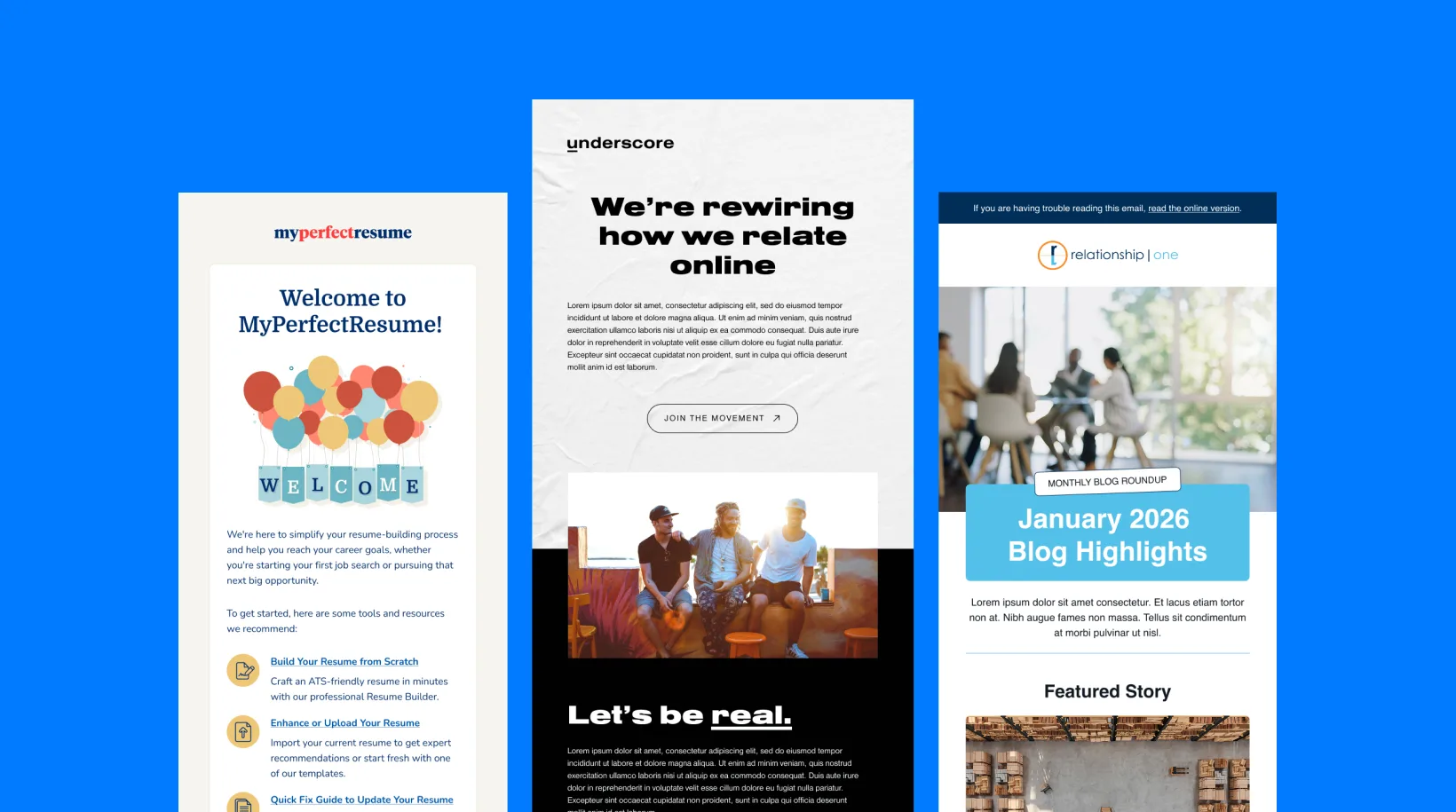
Ready for email design that stays on-brand?
One good-looking campaign is not enough to build a recognizable email presence. Brand consistency comes from repetition: the same visual cues, tone, and structure showing up across every send.
These email newsletter design best practices help each campaign stay clear and on-brand, even when inboxes and devices behave differently. And when your team is juggling more requests than it can handle, extra creative support can help protect that consistency.
Get design on-demand for your marketing efforts!
With Design Force, you get a dedicated creative production team that learns your brand and helps you move faster.
Meet Design Force